What Is Docker? 7 Things Every Developer Should Know (With Examples)
November 10, 2026 · DevOps
"It works on my machine." Every developer has said it — usually at the worst moment, when a demo that ran fine on a laptop breaks on the server. So what is Docker? A platform that packages your application with everything it needs to run, into a portable unit that behaves the same everywhere. This guide covers it in 7 parts: the definition, containers vs VMs, how isolation works, images and the Dockerfile, the architecture, a first run, and data, networking, and when to skip Docker.
What is Docker?
Docker is an open-source platform for building, shipping, and running applications in containers. A container is a standard unit of software: your code packaged with its runtime, libraries, and settings, so the app runs the same from one environment to another — laptop, colleague's machine, production server — because it carries its environment with it.
Docker began as an internal tool at dotCloud. Its creator, Solomon Hykes, introduced it in a five-minute lightning talk at PyCon in Santa Clara on 15 March 2013, and it was open-sourced the same month; within seven months the company had renamed itself Docker Inc. Containers date back decades — Docker made them easy: one command to build, one to run, one registry to share them from.
That ease is the point. Before Docker, "deploy the app" meant a long setup document — install this Python, that library, this database — and hoping every machine matched it. Docker turns the setup into the artifact itself: if the container runs on your machine, it runs on the server.
Docker vs virtual machines: the real difference
The most common misunderstanding is that a container is a small virtual machine. It is not. A virtual machine boots a whole guest operating system — its own kernel, its own drivers — on a hypervisor. A container skips all of that: an ordinary process on the host, sharing the host kernel, fenced off by the kernel itself.
| Docker container | Virtual machine | |
|---|---|---|
| What it runs | One application process (or a small group) | A whole operating system |
| Kernel | Shares the host kernel | Its own guest kernel |
| Start time | About a second — it is just a process starting | Minutes — a full OS boot |
| Memory | Megabytes | Gigabytes, reserved up front |
| Isolation | Process-level (namespaces + cgroups) | Hardware-level (hypervisor) |
| Portability | Same image runs on any Docker host | Needs a compatible hypervisor |
Sharing the kernel is why containers are light — and why their isolation is weaker than a VM's. A Linux container needs a Linux kernel, so Docker Desktop on macOS and Windows runs containers inside a lightweight virtual machine. A kernel bug can, in principle, escape a container, where a VM's hypervisor adds a second wall. Rule of thumb: isolate the application with Docker; isolate the whole OS with a VM.
How a container actually works: namespaces, cgroups, and layers
There is no "container" object in the Linux kernel — a container is a normal process with three fences around it. Docker's docs say it "uses a technology called namespaces to provide the isolated workspace called the container", and control groups limit what a container may use.
- Namespaces — what the process can see. Docker asks the kernel to create namespaces for each container: PID gives it its own process list — your app believes it is PID 1 — NET its own network and ports, MNT its own filesystem, UTS its own hostname, and USER its own user IDs. A container cannot see other containers' processes or files; as far as it knows, they do not exist.
- Cgroups — what the process can use. Control groups cap CPU, memory, disk I/O, and process count — without them, one greedy container could starve the host. By default there are no limits; set them with
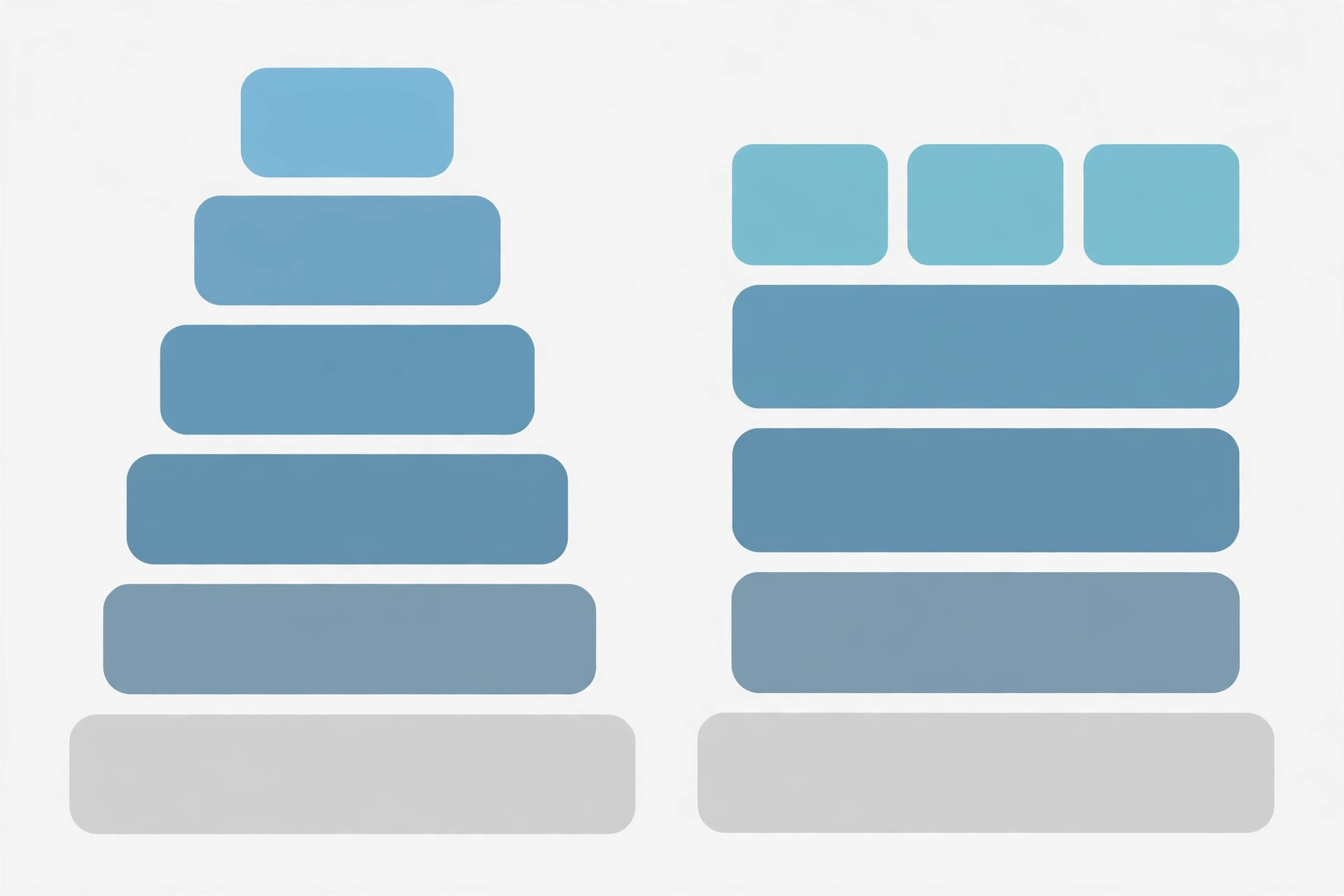
--memoryand--cpus. - Union filesystem — how the files are built. An image is a stack of read-only layers, one per Dockerfile instruction, assembled by a union filesystem (usually OverlayFS). A container adds one thin writable layer on top; deleting the container deletes it.
Docker invented none of this — namespaces and cgroups predate it by years. The standards followed: the Open Container Initiative was founded in 2015, Docker's runtime became runc, and containerd went to the Cloud Native Computing Foundation in 2017.

Images and the Dockerfile: your app as a recipe
An image is the blueprint; a container is the running copy. The image is built from a Dockerfile, a plain text file listing, step by step, how to assemble your app's environment. Here is a complete one:
# Dockerfile — a static site on nginx
FROM nginx:alpine
COPY index.html /usr/share/nginx/html/index.html
EXPOSE 80
CMD ["nginx", "-g", "daemon off;"]
Each instruction does one job and adds one layer. FROM nginx:alpine starts from the official nginx image on the tiny Alpine base. COPY adds your file. EXPOSE 80 documents the port — it does not publish it. CMD sets the command the container runs, here nginx in the foreground, because a container dies with its main process.
Build it and run it:
docker build -t my-site .
docker run -d -p 8080:80 my-site
docker build -t my-site . tags the image my-site; docker run -d starts it detached, and -p 8080:80 maps your port 8080 to the container's port 80. Layers are cached, so rebuilding after changing only index.html reuses every layer below COPY — which is why order matters: dependencies first, your code last.
Images are meant to be shared: docker push uploads to a registry — Docker Hub is the default — and docker pull downloads onto any machine. nginx:alpine is image nginx, tag alpine; leave the tag off and Docker assumes latest, a moving target — pin a real version in anything you deploy more than once.
The Docker architecture: client, daemon, and registry
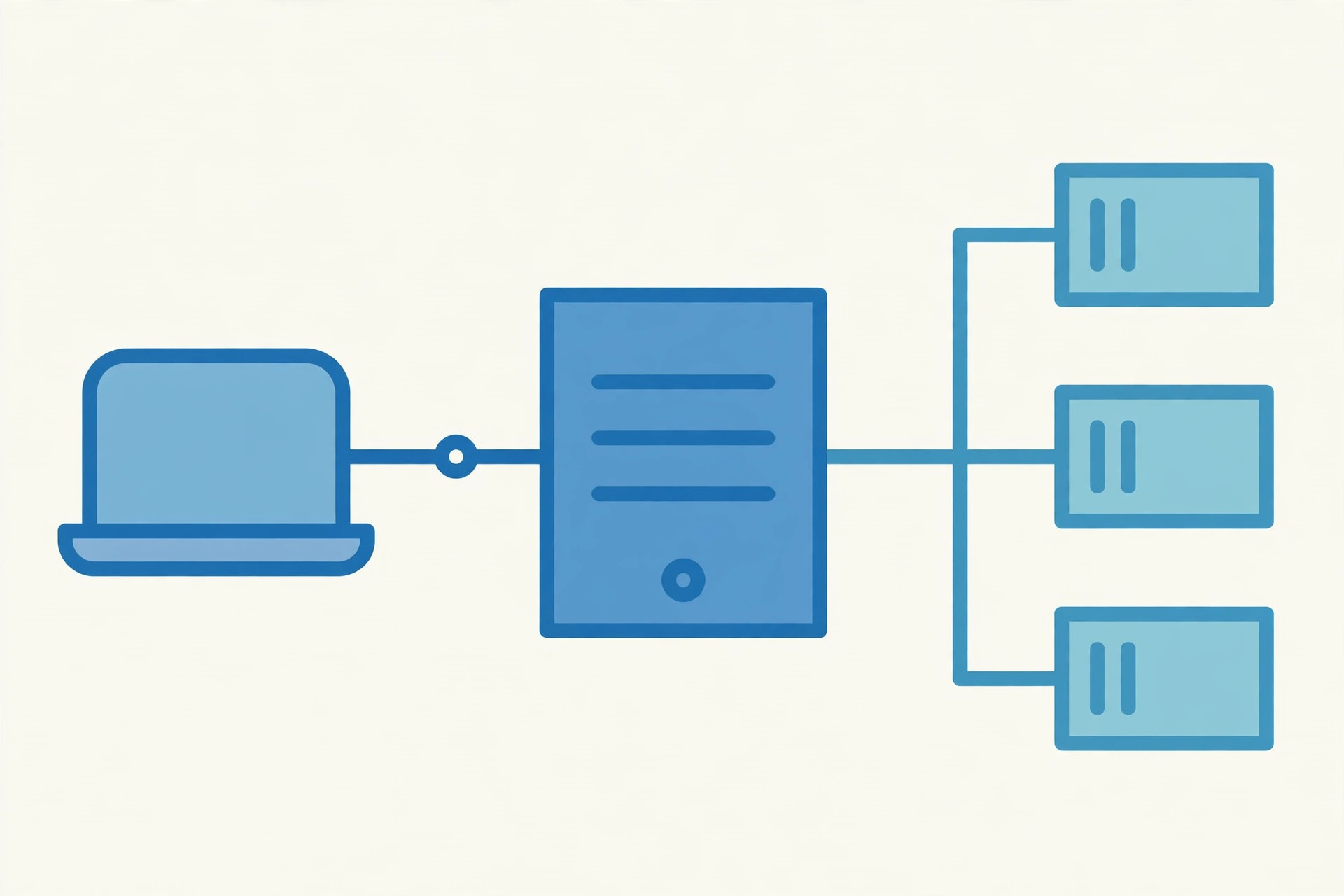
Docker is a client-server system. The Docker client is the docker command you type; it sends instructions to the Docker daemon (dockerd), a long-running service that builds images and runs containers. The daemon hands container creation to containerd, which manages lifecycles, and containerd hands the low-level work — namespaces, cgroups, starting your process — to runc, the OCI runtime specification's reference implementation.
That chain is also the history of Docker's ecosystem splitting into standards. Kubernetes no longer goes through Docker at all: it talks to containerd directly, which is why Kubernetes 1.24 removed dockershim, its built-in Docker Engine adapter, in 2022. Your Docker images still run on Kubernetes, because both sides speak the same OCI image format. Our service mesh guide builds on this stack: a mesh is a fleet of proxies running as containers, orchestrated by Kubernetes.
Verified demo: hello-world and your first image
Docker is not installed on this machine, so the output below is not a local run — it is what Docker's own hello-world image documents on Docker Hub. Install Docker Engine (Linux) or Docker Desktop (macOS/Windows), then run:
$ docker run hello-world
Unable to find image 'hello-world:latest' locally
latest: Pulling from library/hello-world
Digest: sha256:0add3ace90ecb4adbf7777e9aacf18357296e799f81cabc9fde470971e499788
Status: Downloaded newer image for hello-world:latest

Hello from Docker!
This message shows that your installation appears to be working correctly.
To generate this message, Docker took the following steps:
 1. The Docker client contacted the Docker daemon.
 2. The Docker daemon pulled the "hello-world" image from the Docker Hub.
 3. The Docker daemon created a new container from that image which runs the
    executable that produces the output you are currently reading.
 4. The Docker daemon streamed that output to the Docker client, which sent it
    to your terminal.
That output is a tour of the architecture: the client asked, the daemon pulled the image, created a container, and streamed the output back. The whole image is one static binary — about 10 KB — Docker's favourite example of how small an image can be. Run it again and the pull lines disappear.
Now check what is on your machine:
$ docker ps -a
CONTAINER ID   IMAGE         COMMAND     CREATED        STATUS
0561352787ff   hello-world   "/hello"    4 minutes ago  Exited (0)

$ docker images
REPOSITORY     TAG     IMAGE ID      SIZE
hello-world    latest  e2ac70e7319a  10.07kB
docker ps -a lists containers including stopped ones — hello-world exited the moment it printed, because a container lives only as long as its main process. The IDs above are examples from Docker's documentation; yours will differ in the details, not the shape. From here, build the Dockerfile from the previous section and you have done the whole loop.
Data, networking, and when NOT to use Docker
Two things catch every beginner, and both follow from one fact: containers are disposable. First, data. Anything a container writes inside itself dies with it. A named volume (docker run -v site-data:/data) is Docker-managed storage that survives restarts. A bind mount (-v ./html:/usr/share/nginx/html) maps a folder on your machine into the container, so editing a file on the host changes it inside immediately.
Second, networking. Each container gets its own network namespace and IP, and by default containers join a virtual bridge network where they reach each other by name. A container's ports stay private until you publish them with -p, which is why the nginx example needed -p 8080:80. On the same user-defined network, containers resolve each other by name, so a web container can call http://api:3000 without knowing any IP — the same discovery our IP address guide and DNS guide describe at other layers. When one container is not enough, Docker Compose describes a whole stack in one YAML file and starts it with docker compose up. Our cron job guide pairs with the data half: a scheduled backup job in a container still needs a volume, or there is nothing to back up.
So when should you not use Docker? When the problem is smaller than the tool: a single script, a desktop GUI app, or a workload that needs its own kernel. A container is also not a security boundary — never run untrusted code in one and call it sandboxed; use a VM. But when the same code must run on more than one machine, Docker's deal is hard to beat: build once, run anywhere.
Docker turned Linux containers from a kernel expert's tool into a developer's everyday habit: an image is a portable blueprint, a container is its running copy, and the daemon, containerd, and runc turn one command into an isolated process. Start with docker run hello-world, then build one image of your own — that loop is the whole skill. Read the Docker getting-started guide and the Docker history on Wikipedia for the details.
Frequently asked questions
- What is Docker in simple terms?
- Docker is a platform that packages your application together with everything it needs to run — the runtime, libraries, and configuration — into a portable unit called a container. That container runs the same way on your laptop, in testing, and on a production server, so the "works on my machine" problem mostly disappears.
- What is the difference between a Docker image and a Docker container?
- An image is the read-only blueprint: a stack of layers built from a Dockerfile. A container is a running instance of an image — the same image started as an isolated process, with a thin writable layer on top for anything it changes while it runs. One image can start many containers.
- Is a Docker container a virtual machine?
- No. A virtual machine boots a whole guest operating system on a hypervisor. A container is an ordinary process on the host that shares the host kernel and is fenced off with Linux namespaces and cgroups. That is why a container starts in about a second and uses megabytes of memory, while a VM needs minutes and gigabytes.
- Do I need Docker Desktop, or is the Docker Engine enough?
- On Linux, the open-source Docker Engine is enough: containers run directly on your kernel. On macOS and Windows, containers are still Linux containers, so Docker Desktop runs them inside a lightweight virtual machine for you. Docker Desktop is free for small businesses — under 250 employees and under $10 million in annual revenue — and larger companies need a paid subscription.
- Where does data go when a container stops?
- Nowhere, unless you planned for it. A container's writable layer is deleted with the container, so anything written inside it is gone. Use a named volume for data that must survive — a database, uploaded files — and a bind mount when you want to edit files on the host and see the change inside the container.
- What is a Dockerfile?
- A Dockerfile is a plain text recipe that describes how to build an image, one instruction per line: FROM picks the base image, RUN executes a command while building, COPY adds your files, EXPOSE documents the port, and CMD sets the command the container runs. Every instruction adds one read-only layer to the image.
- Is Docker the same as Kubernetes?
- No. Docker packages and runs one container at a time on one machine. Kubernetes orchestrates many containers across many machines: scheduling, scaling, self-healing, and service discovery. Kubernetes used to run containers through Docker's engine via an adapter called dockershim, removed in Kubernetes 1.24; today it talks directly to container runtimes like containerd.
- When should I NOT use Docker?
- Skip Docker when the cost outweighs the benefit: a single tiny script on one server, a desktop GUI application, or a workload that needs a full operating system with its own kernel. Docker also adds a layer to debug — if your team never ships the same code to more than one machine, a plain deployment may be simpler.
Related articles
What Is a Cron Job? 7 Things Every Developer Should Know (With Examples)
What is a cron job? Learn how cron jobs schedule tasks on Linux — crontab, the cron daemon, logging, the classic pitfalls, and when to use a scheduler instead.
DevOpsCron Expressions Explained: Syntax, Examples & Pitfalls
Reading cron syntax field by field, the examples you'll actually use, and the timezone/day-of-month traps that bite everyone once.
DevOpsHTTP Security Headers Explained
What Content-Security-Policy, HSTS, X-Frame-Options and friends actually do — and the minimal set every site should ship.