What Is Caching? 7 Things Every Developer Should Know (With Examples)
October 22, 2026 · Web Development
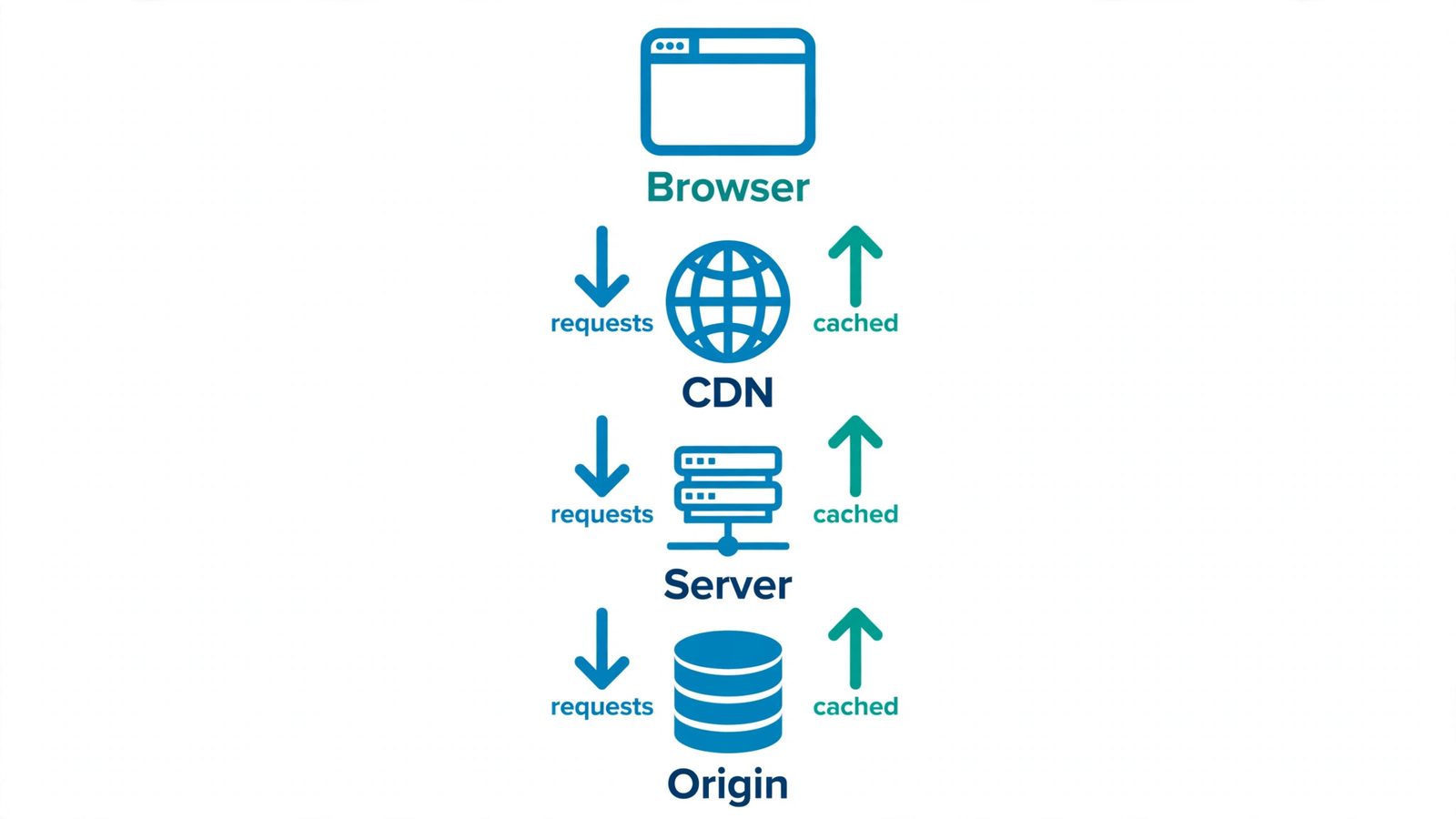
At its core, caching is the fastest shortcut in computing: keeping a copy of something expensive to get, somewhere cheap to reach. The first request does the expensive work — querying a database, rendering a page, downloading a file across the ocean — and stores the result. Every repeat request skips the work and takes the shortcut instead. Web caching applies the same idea to the internet: your browser, content delivery networks, and servers all keep copies of responses so repeat requests never travel the full path. This guide covers the four places caches live on the web and how developers control them — with examples you can inspect yourself.
1. What caching actually is
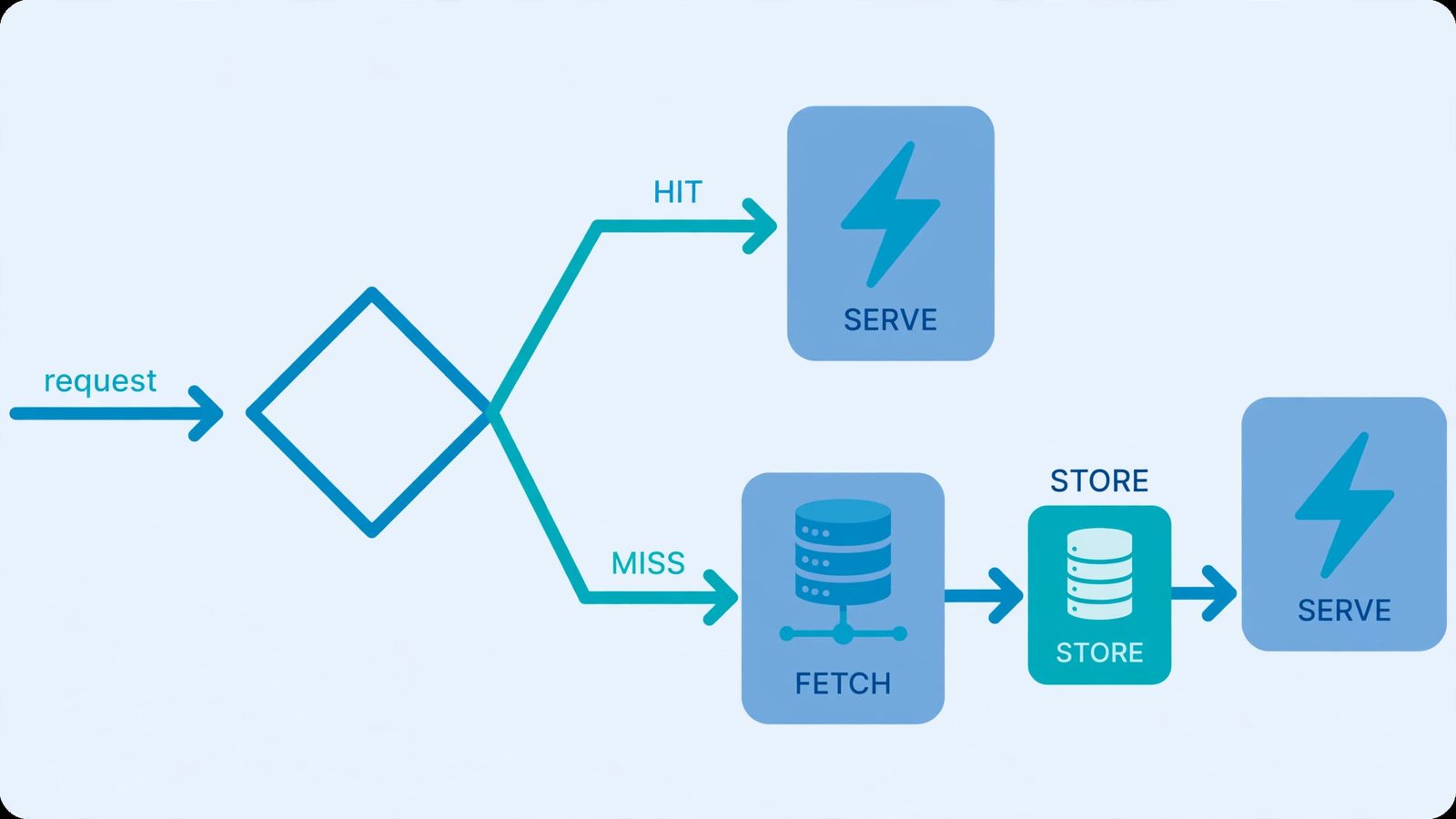
A cache is temporary storage that holds copies of data likely to be requested again. When a request can be answered from the cache, that is a cache hit — served fast, no expensive work repeated. When the data is not there, that is a cache miss: the system fetches from the original source, stores a copy, and serves it. A miss costs slightly more than a request with no cache at all (the lookup itself takes work) — the payoff comes from every hit after it.
Every cache, from your browser to a database cluster, answers the same three questions:
- What to store? Only data that is expensive to recreate and likely to be asked for again.
- Where to store it? Somewhere faster than the original source — memory, disk, or a nearby server.
- How long is it valid? Every copy gets a lifetime (a TTL). Expired copies are rechecked or replaced.
Get any of the three wrong and the shortcut breaks: you waste memory, serve stale data, or add complexity for no gain.

2. The four places web caching lives
On the web, caching happens at four distinct layers. They stack — a single page load can benefit from all of them:
| Cache layer | Where it lives | What it stores |
|---|---|---|
| Browser cache (private) | On the user's device, inside the browser | Images, CSS, JavaScript reused across pages |
| CDN cache (shared, managed) | Edge servers around the world | Whole pages and assets, served from the nearest city |
| Server-side cache | The application's memory (Redis, Memcached) | Database query results, rendered page fragments |
| DNS cache | OS, router, and DNS resolver | Domain → IP mappings, so lookups are skipped |
HTTP itself distinguishes private caches (tied to one client — your browser — which may safely store personalized responses) from shared caches (between client and server, serving many users), which split further into proxy caches and managed caches like CDNs and reverse proxies. Because most traffic is now HTTPS, old-style network proxies can only tunnel the encrypted traffic — they cannot cache it — which is why deliberately deployed managed caches like CDNs matter. Our CDN explainer goes deep on the shared-cache side, and our DNS explainer covers the resolver-cache layer.
3. Browser caching: the cache you already use
Browser caching is the private cache inside your web browser. On your first visit to a site, the browser downloads everything: HTML, CSS, JavaScript, images. On your second visit, it checks its cache first and reuses the stored files instead of downloading them again. That is why the second page of a site loads noticeably faster than the first — the shared assets (logo, stylesheet, scripts) were already on your device.
Three browser-caching facts worth knowing:
- The site decides the rules. The browser only caches what
Cache-Controlheaders allow, for as long as they allow. A site can mark a response uncacheable, and the browser will obey. - A hard refresh skips the cache. Ctrl+Shift+R on Windows/Linux (or Cmd+Shift+R on Mac) tells the browser to fetch everything fresh. It is the classic fix for "the site isn't updating."
- Incognito starts empty. A private/incognito window opens with an empty cache — useful when you want to see a page exactly as a first-time visitor sees it. In DevTools, the Network tab has a "Disable cache" checkbox (active only while DevTools is open).
4. Fresh vs stale: TTL and max-age
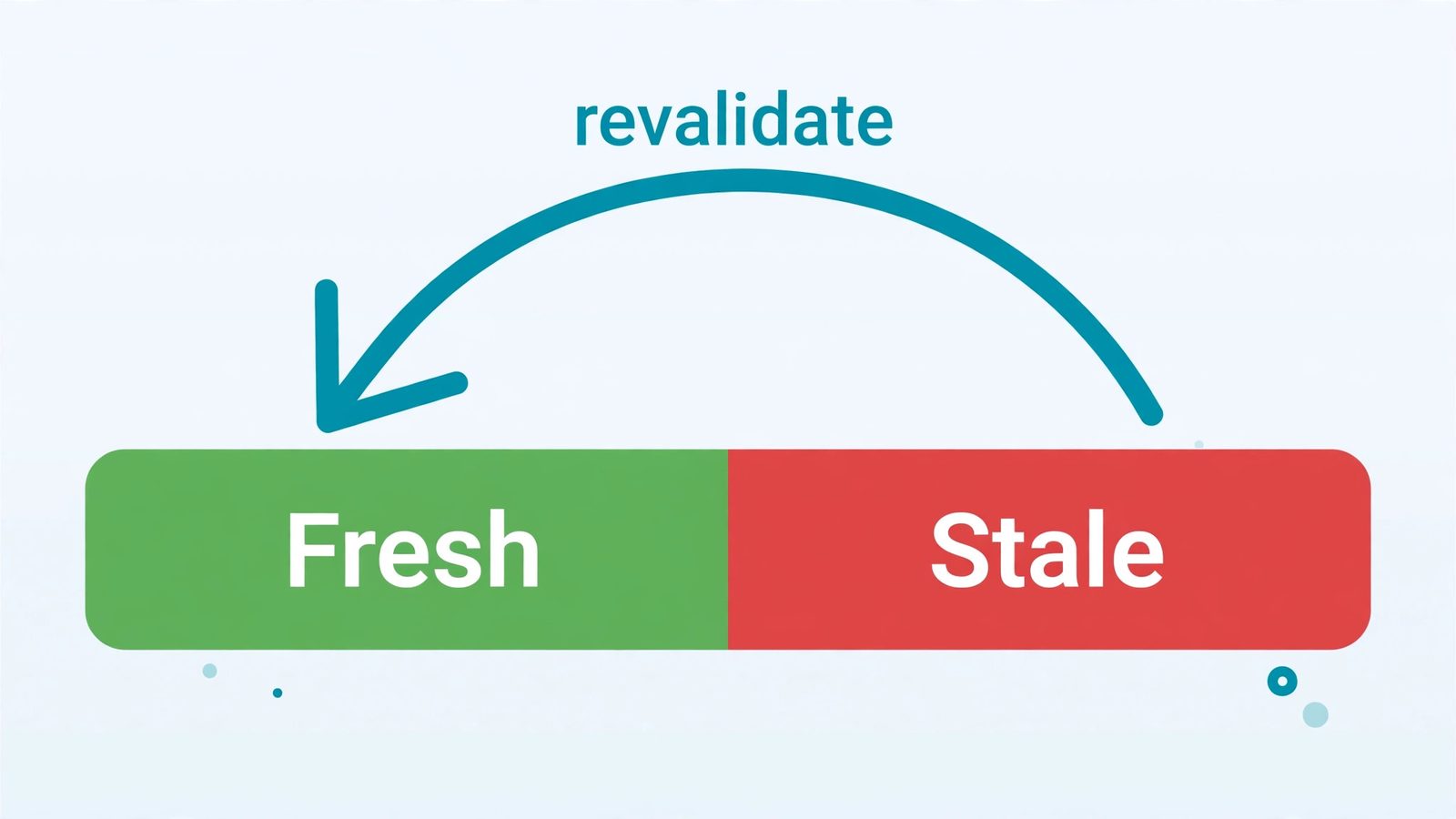
A stored response lives in one of two states: fresh (still valid, reused freely) or stale (expired, must be rechecked). The dividing line is age — the time elapsed since the response was generated — compared against the TTL (time to live) the server set:
Cache-Control: max-age=604800That header says "this response is fresh for 604,800 seconds" (one week). While age is below the limit, the cache serves the copy without contacting the origin. After the week passes, the copy is stale. A shared cache adds an Age header telling the client how long it has held the response, so the client knows how much freshness remains.
What if the server sends no Cache-Control at all? HTTP falls back to heuristic caching: the cache guesses a lifetime from the Last-Modified date (the spec recommends roughly 10% of the time since the last modification). The older Expires header (HTTP/1.0) sets freshness with an explicit date instead of an elapsed time — but when both are present, max-age wins.
Try our free HTTP Header Checker on any URL: it shows the Cache-Control, Age, and ETag headers live — watch Age climb on a CDN-served page.
5. Revalidation: how a stale copy becomes fresh again
Stale does not mean deleted. Instead of downloading the whole response again, the cache asks the origin a cheap question: "has this changed?" It sends a conditional request carrying one of two headers:
If-Modified-Since— with the storedLast-Modifieddate.If-None-Match— with the storedETag, an arbitrary version string the server assigns (often a hash of the body contents).
If nothing changed, the server answers 304 Not Modified — no body, a tiny transfer — and the cache marks its stored copy fresh again for another TTL window. If the resource did change, the server returns 200 OK with the new copy, which replaces the old one.
6. Cache-Control directives worth memorizing
The Cache-Control response header is the control panel of web caching. Seven directives cover nearly every real-world need:
| Directive | Meaning |
|---|---|
max-age=3600 | Fresh for this many seconds (applies to private caches) |
s-maxage=3600 | Overrides max-age in shared caches only |
public | Shared caches (CDNs) may store this response |
private | Browser-only — never store in a shared cache (use for personalized content) |
no-cache | Store it, but revalidate with the origin before every reuse |
no-store | Don't store anything, anywhere — for sensitive responses |
must-revalidate | Once stale, never serve without checking the origin first |
The most misunderstood directive is no-cache: despite the name, it does not mean "don't cache." It means "cache, but always ask the server before reusing." If you truly want nothing stored — bank balances, private dashboards — no-store is the directive.
7. What not to cache (and why)
- Personalized content in shared caches. A logged-in page cached on a CDN edge could leak one user's data to another. Mark it
Cache-Control: privateso only the browser keeps it. - POST responses. On the web,
GETandHEADare the cacheable methods; aPOSTresponse is not cached by default — one more reason reads belong on GET. See our GET vs POST explainer. - Unique URLs are unique cache entries. Caches key responses by URL, so
/search?q=appleand/search?q=orangeare separate entries — high-cardinality query strings can flood a cache. See our query string explainer. - Anything carrying credentials. Responses to requests with an
Authorizationheader must not be stored by shared caches unless the server explicitly allows it.
8. Cache invalidation: the hard part
"There are only two hard things in computer science: cache invalidation and naming things." — Phil Karlton. The joke survives because it is true: copies of your data live in places you do not control (every visitor's browser, every CDN edge), and the HTTP spec defines no standard "delete this cached response" operation.
Three strategies make it manageable:
- Short TTLs for volatile content. If a page changes often, give it a short
max-ageso staleness self-corrects quickly. - Fingerprint your assets. Ship
style.v2.cssinstead ofstyle.css. A new filename is a new cache key — no stale copy can be served, and the old file can carry a far-future TTL. - Purge managed caches. CDNs and reverse proxies offer purge-by-URL through dashboards and APIs — the one place you get an explicit delete button. Our CDN guide covers how purge works on edge networks.
Once you know the vocabulary — hit, miss, TTL, fresh, stale, revalidation — stale-page mysteries stop being mysteries. Read any site's Cache-Control headers with our header checker, and go deeper with MDN's HTTP Caching guide and the source of truth, RFC 9111 (HTTP Caching).
Frequently asked questions
- What is the difference between a cache hit and a cache miss?
- A cache hit means the requested data was already in the cache, so it was served immediately without touching the slower source. A cache miss means the data was not in the cache: the request goes to the origin (database, API, server), the response is stored in the cache, and then served. A miss costs slightly more than a request with no cache at all because of the extra lookup — the payoff comes from every hit after it.
- What is TTL in caching?
- TTL (time to live) is how long a cached copy is considered valid before it must be rechecked. On the web it is usually set with the Cache-Control: max-age header in seconds (for example, max-age=604800 means one week). Age works like TTL: a shared cache adds an Age header showing how long it has held the response, and the client treats the response as fresh while max-age minus Age is still positive.
- What is the difference between browser cache and cookies?
- Browser caching stores copies of a website's files — images, CSS, JavaScript — so pages load faster on repeat visits. Cookies store small pieces of data about you: login sessions, preferences, shopping carts. They solve different problems: the cache remembers the site, cookies remember you. Clearing the cache frees space and forces fresh downloads; clearing cookies logs you out of sites. See our <a href="/blog/what-is-a-cookie">HTTP cookie explainer</a> for the full picture.
- How do I clear my browser cache?
- In Chrome: Settings → Privacy and security → Delete browsing data → check "Cached images and files" → Delete data. In Firefox: Settings → Privacy & Security → Cookies and Site Data → Clear Data. For a single page, a hard refresh (Ctrl+Shift+R on Windows/Linux, Cmd+Shift+R on Mac) skips the cache and re-downloads everything. Developers can tick "Disable cache" in the DevTools Network tab (it applies only while DevTools is open).
- What is the difference between browser caching and CDN caching?
- Browser caching is a private cache on the user's device — it speeds up repeat visits for that one person. CDN caching is a shared, managed cache on edge servers around the world — it speeds up the first visit for everyone by serving content from the nearest location. The two stack: a page can be served from a CDN edge on your first visit and from your browser cache on your second. Our <a href="/blog/what-is-a-cdn">CDN explainer</a> covers the edge side in depth.
- What does Cache-Control: no-store do?
- It forbids storing the response anywhere — no browser cache, no CDN, nothing. Use it for sensitive responses you never want persisted, like bank balances or private account pages. Do not confuse it with no-cache: a response marked no-cache IS stored, but the cache must revalidate with the origin server before every single reuse. "no-store" is the only directive that means "don't keep a copy."
- Why does my website show an old version after I deploy?
- A cache somewhere is serving a stale copy — the browser cache, a CDN edge, or both. Quick checks: hard refresh (Ctrl+Shift+R), try an incognito window (starts with an empty cache), or purge the CDN cache from its dashboard. The durable fix is fingerprinting: ship style.v2.css instead of style.css. A new filename is a new cache key, so no stale copy can be served.
- What is cache invalidation and why is it so hard?
- Cache invalidation means making sure cached copies get replaced or removed when the source data changes. It is famously hard — "there are only two hard things in computer science: cache invalidation and naming things" (Phil Karlton) — because caches are distributed, copies live in places you do not control (every visitor's browser), and the HTTP spec defines no standard "delete this cached response" operation. Strategies: short TTLs for volatile content, versioned filenames, and purge APIs on managed caches.
Related articles
What Is a Proxy Server? 7 Things Every Developer Should Know (With Examples)
What is a proxy server? Learn how proxy servers work for developers — forward vs reverse, HTTP vs SOCKS, CONNECT tunneling, and proxy vs VPN. With examples.
Web DevelopmentWhat Is an API Gateway? 7 Things Every Developer Should Know (With Examples)
What is an API gateway? Learn how API gateways work for developers — routing, auth, rate limiting, aggregation, and when not to use one, with code examples.
Web DevelopmentWhat Is a Load Balancer? 7 Things Every Developer Should Know (With Examples)
What is a load balancer? Learn how load balancers work — Layer 4 vs Layer 7, routing algorithms, health checks, and sticky sessions, with config examples.