HTTP vs HTTPS: 7 Key Differences Every Developer Must Know (With TLS Examples)
October 9, 2026 · Web Development
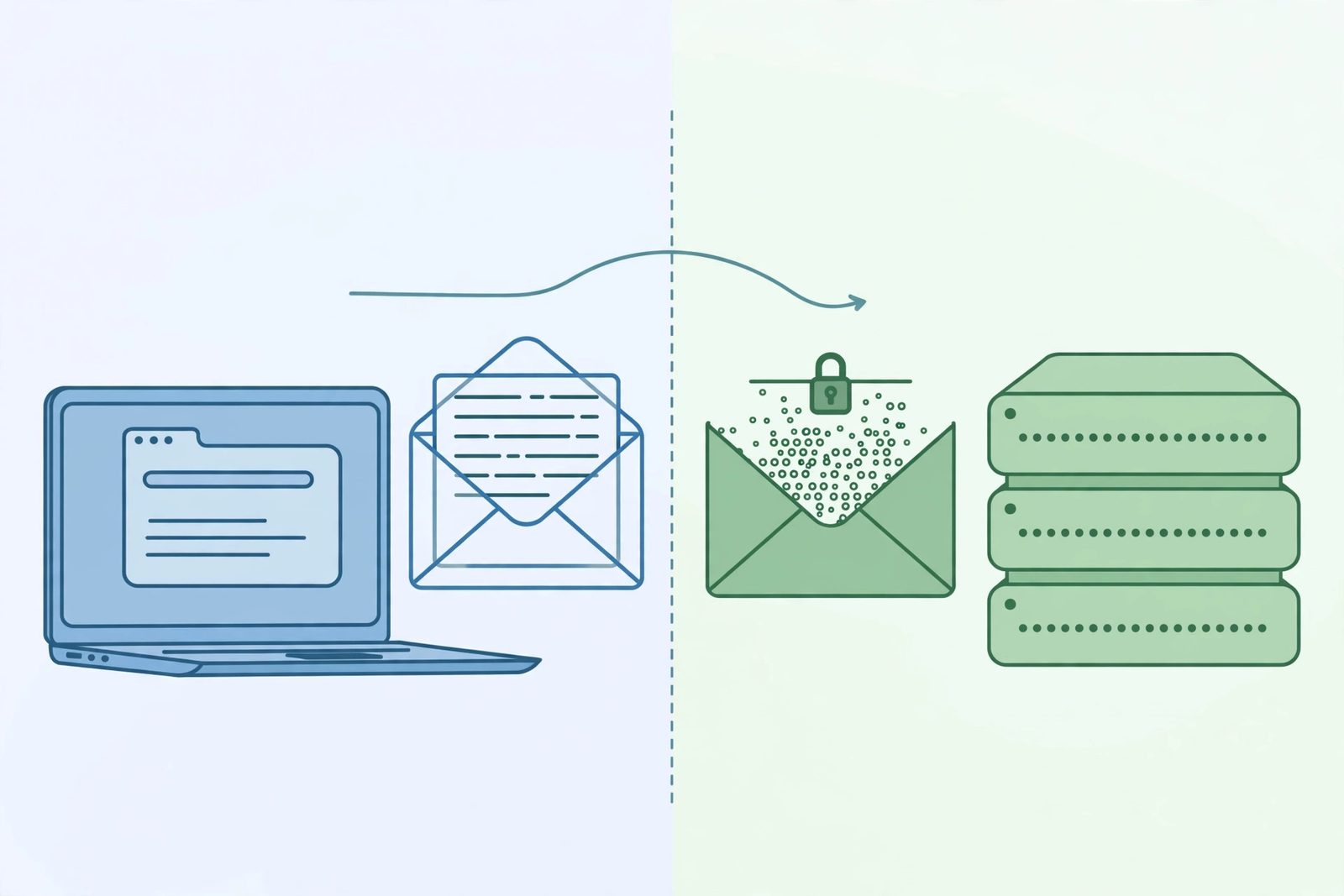
Log into your bank on café Wi-Fi and the connection is unreadable to anyone snooping the network. Load an old blog over http:// and everything — the request, the cookies, the response — travels as plain, readable text. The one-letter difference between HTTP vs HTTPS is the difference between a postcard anyone can read and a sealed, tamper-evident envelope. What is HTTPS, how does it differ from HTTP under the hood, and is HTTPS secure enough for everything you build? This guide covers the 7 key differences — the TLS handshake, SSL certificates, ports 80 vs 443, and what browsers really do with each — plus how to get HTTPS on your own site for free.
What is HTTP?
Your browser sends a request and the server sends back a response. But HTTP sends everything in plaintext: every request line, header, and body byte is readable by anyone between you and the server — the café Wi-Fi owner, your ISP, a compromised router. Passwords, session cookies, private messages: all visible to whoever's watching.
HTTP also does nothing to prove who you're talking to. There's no identity check: a man-in-the-middle can intercept your connection, pretend to be the site, and serve you whatever they want — and plain HTTP gives you no way to notice.
What is HTTPS?
HTTPS (HTTP Secure) is HTTP wrapped in a TLS (Transport Layer Security, the successor to SSL) encryption layer. Everything the protocol does — the methods, headers, and status codes — stays the same; TLS adds three guarantees on top:
- Encryption: all data is scrambled in transit, readable only by the browser and the server.
- Authentication: the server presents a certificate signed by a trusted authority, proving it really is the site you asked for.
- Integrity: any tampering with the data in transit is detected and the connection is dropped.
The single letter "S" is doing a lot of work: it upgrades the postcard to a sealed envelope with an ID check.
HTTP vs HTTPS: the 7 key differences
| Feature | HTTP | HTTPS |
|---|---|---|
| Data in transit | Plaintext — readable by anyone on the network | Encrypted with TLS — unreadable without the session key |
| Default port | 80 | 443 |
| Server identity | Not verified — anyone can impersonate the site | Verified via a certificate signed by a trusted authority |
| Tamper protection | None — responses can be altered silently | Integrity checks detect and reject modifications |
| Browser display | "Not Secure" warning on most pages today | Padlock icon, often with "Secure" |
| SEO | No signal | Lightweight Google ranking signal |
| Setup cost | None | Free with Let's Encrypt; minutes to configure |
Notice what didn't change: the HTTP semantics. A 200 OK, a 404, a POST — TLS doesn't touch any of it, which is why every status code you know behaves identically over HTTPS.
How HTTPS works: the TLS handshake
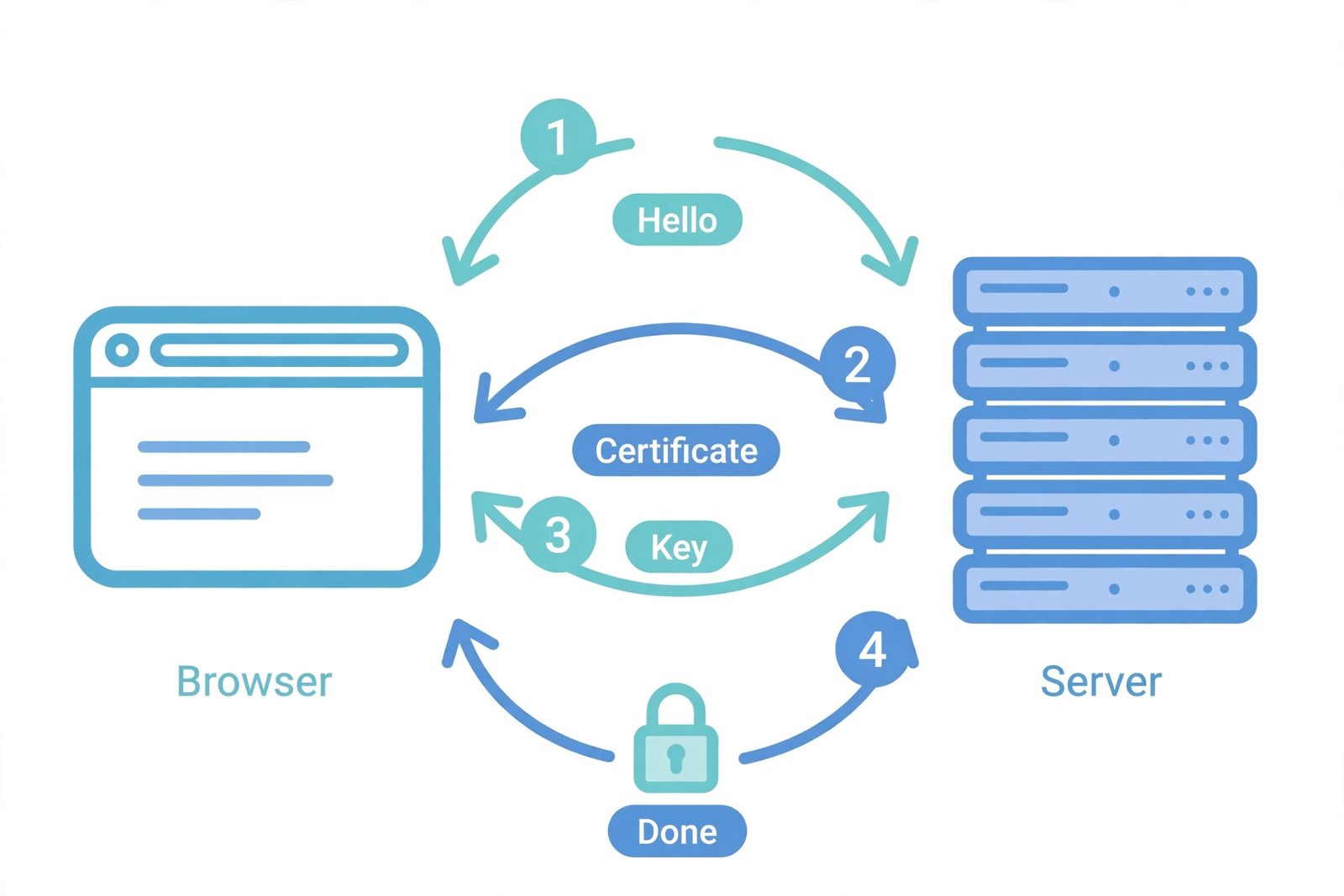
Before any web data flows, the browser and server run a negotiation called the TLS handshake. It establishes trust and agrees on encryption keys — all before the first HTTP request is sent:
- Client hello. The browser says "let's talk securely" and lists the TLS versions and cipher suites it supports.
- Server hello + certificate. The server picks a cipher, then sends its certificate — a digital ID containing its public key and domain, signed by a certificate authority.
- Verify: browsers check the certificate's signature, expiry, and domain match. Any failure shows the full-page security warning.
- Key exchange. The browser encrypts a secret using the server's public key and sends it. Only the server, holding the private key, can decrypt it. Both sides now derive the same session key — and they never sent it across the network in readable form.
- Encrypted session begins. From here on, every request and response is encrypted with fast symmetric encryption. The padlock appears.
This asymmetric-then-symmetric design is deliberate: public-key crypto solves the trust problem, and symmetric crypto keeps the actual data transfer fast. See MDN's overview of HTTP for how the request/response layer sitting on top stays unchanged.
SSL certificates and the chain of trust
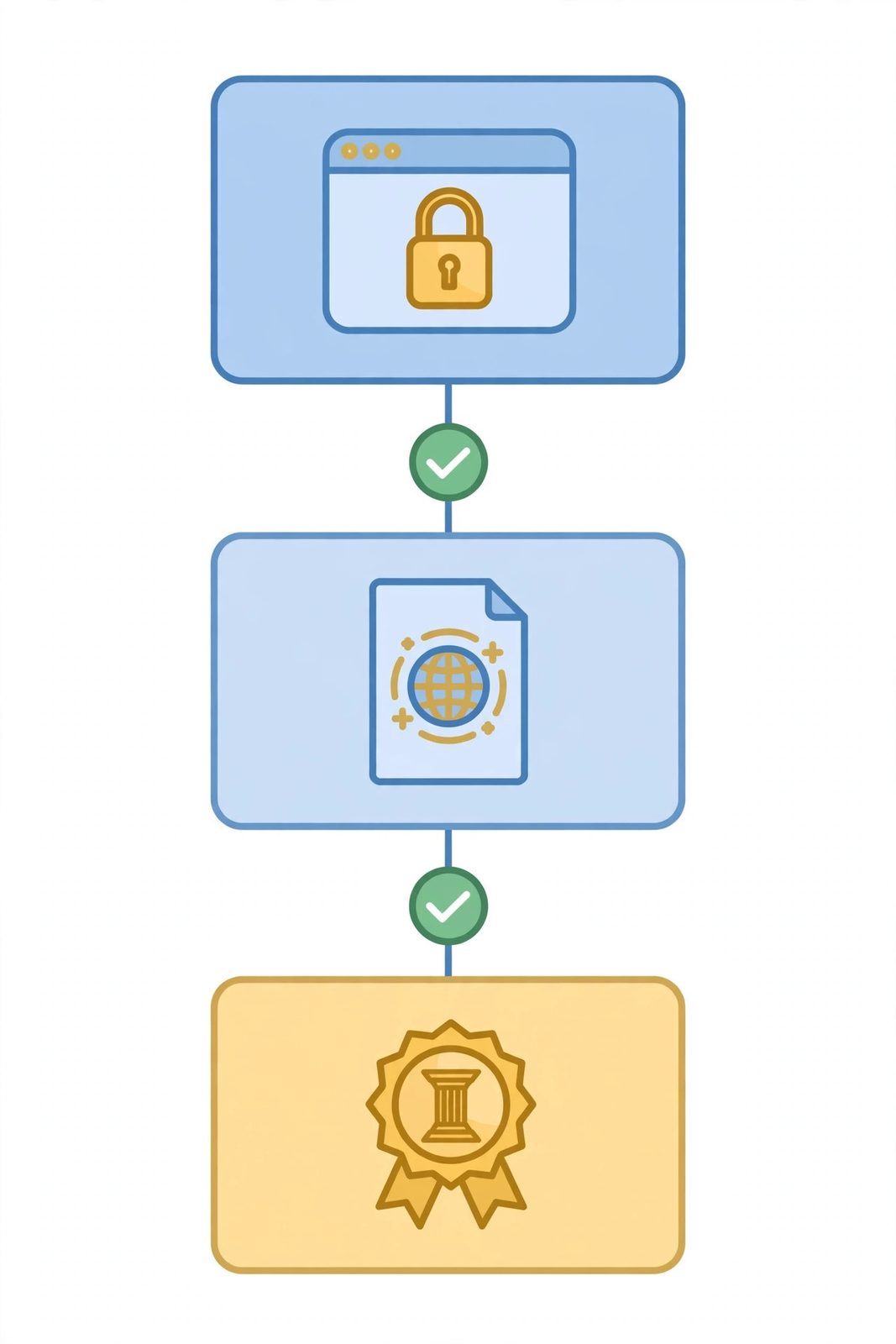
The certificate is what makes the "S" trustworthy. It's a signed statement from a Certificate Authority (CA) — an organization your browser already trusts — saying "this public key belongs to example.com." Trust chains upward: your site's certificate is signed by an intermediate CA certificate, which is signed by a root CA certificate pre-installed in your browser or operating system. Your browser validates the whole chain, not just the bottom link.
What the CA checks before signing depends on the certificate type. The common free kind, Domain Validation (DV), only proves you control the domain — the CA verifies this by asking you to serve a challenge file at a special URL (the ACME HTTP-01 challenge) or set a DNS record. One honest limitation: a certificate proves the site controls the domain, not that its owners are honest — phishing sites can have valid certificates too.
What your browser does with each
Browsers have spent a decade pushing the web toward HTTPS, and their UI tells the story at a glance:
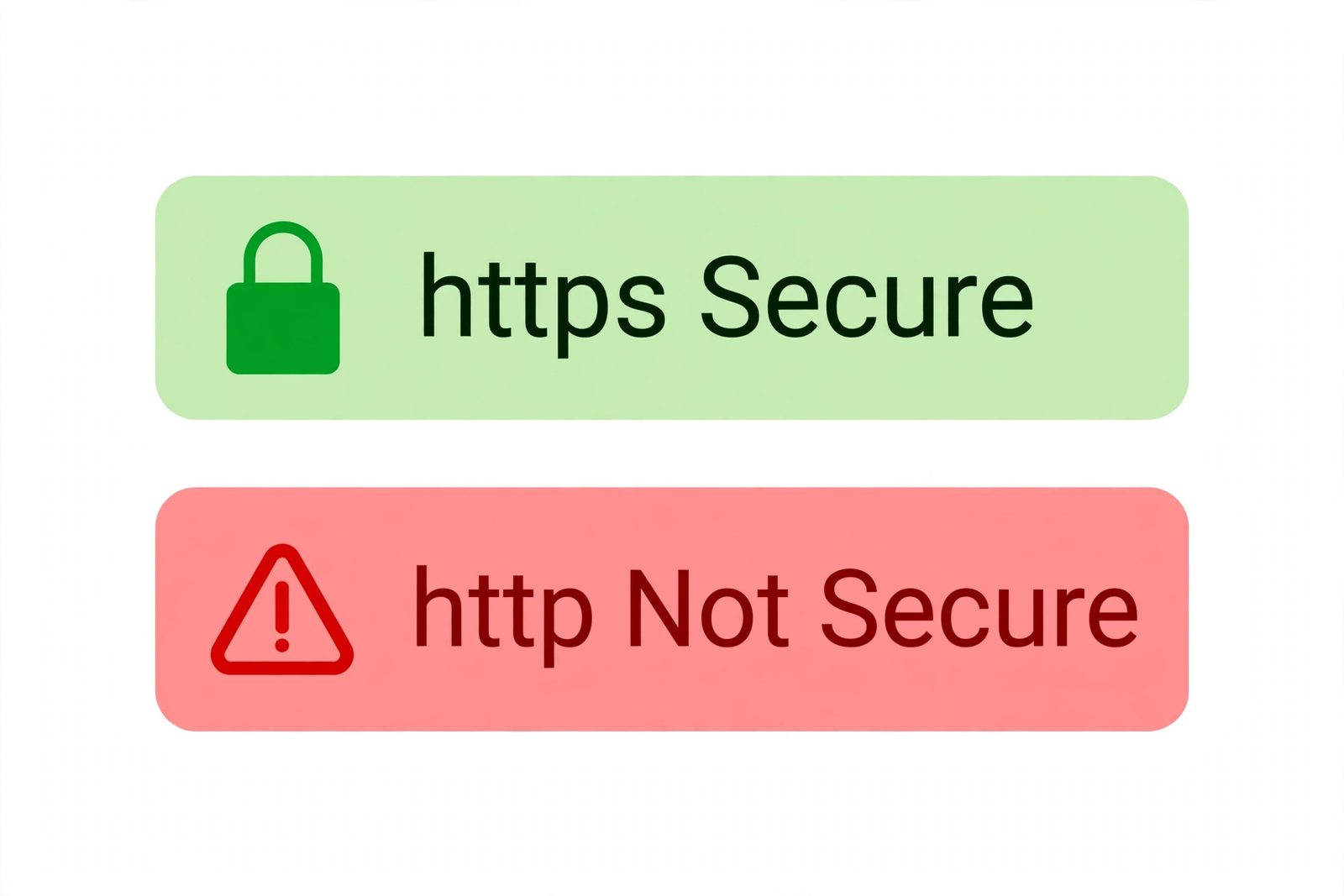
- HTTPS: a padlock in the address bar. Clicking it shows the certificate details — who issued it and which domain it covers.
- HTTP: a "Not Secure" label on any page with a form, and increasingly on plain informational pages too. Chrome and Firefox have steadily expanded these warnings since 2018.
- Invalid HTTPS: an expired, mismatched, or self-signed certificate triggers a full-page interstitial warning the visitor must actively click through — worse than plain HTTP for trust, because it looks like an attack.
Modern browsers also default to trying https:// first when you type a bare domain, and gate newer features — geolocation, service workers — behind secure contexts.
Check a site's HTTPS headers: our free HTTP header checker shows a site's response headers — including HSTS and other security headers — so you can see how seriously a site takes HTTPS at a glance.
Common myths about HTTPS
- "HTTPS makes my site unhackable." No — it only protects data in transit. A server with an SQL injection or leaked API key is just as compromised over HTTPS. HTTPS is one layer, not a security strategy.
- "HTTPS is slow." The handshake costs a few extra round trips once per connection; modern CPUs encrypt data with negligible overhead. And HTTP/2 — browsers' faster, multiplexed protocol — is effectively HTTPS-only, so switching can actually speed a site up.
- "HTTPS hides everything." It encrypts the path, headers, and body, but the domain name leaks through the TLS handshake's SNI field and DNS. It protects what you do on a site, not which site you visit.
- "A padlock means a site is trustworthy." A valid certificate only proves domain control. Attackers register convincing look-alike domains and get free certificates for them. The padlock means the connection is private — it says nothing about the site's honesty.
How to get HTTPS on your own site (for free)
Thanks to Let's Encrypt — a free, automated certificate authority — there's no reason to stay on HTTP. The process, documented in Let's Encrypt's how-it-works guide, runs through the ACME protocol:
- Install an ACME client like Certbot on your server.
- Prove domain control. Certbot serves a challenge file at a special URL on your site; Let's Encrypt fetches it to confirm you control the domain.
- Get the certificate. Let's Encrypt issues a 90-day certificate — short-lived by design, so a compromised key expires quickly.
- Automate renewal. Certbot installs a scheduled renewal that refreshes the certificate before expiry. After that, HTTPS is maintenance-free.
- Redirect HTTP to HTTPS and enable HSTS (HTTP Strict Transport Security) so browsers refuse to ever load your site over plain HTTP again — then watch for mixed content (HTTPS pages loading images or scripts over HTTP, which browsers block).
On managed hosting (Vercel, Netlify, Cloudflare, most shared hosts) it's even simpler: certificates are issued and renewed automatically with a single toggle. Keep private keys server-side like any other secret — the same rule you'd follow for environment variables holding credentials.
The verdict on HTTP vs HTTPS isn't close. HTTPS adds encryption, identity verification, and tamper protection to the HTTP you already know, browsers punish plain HTTP with "Not Secure" warnings, and the certificate is free. Default to https:// for everything you ship — it's the baseline the modern web assumes. And if you're building APIs, remember that HTTPS is also the transport every webhook endpoint and short-link redirect depends on to stay trustworthy in transit.
Frequently asked questions
- What is the difference between HTTP and HTTPS?
- HTTP (Hypertext Transfer Protocol) sends data between your browser and a website as plain, readable text. HTTPS is the same protocol with one addition: a TLS (Transport Layer Security) encryption layer. With HTTPS, every request and response is encrypted in transit, the server's identity is verified by a certificate, and the data can't be silently altered. The "S" stands for Secure.
- Does HTTPS use a different port than HTTP?
- Yes. HTTP uses port 80 by default; HTTPS uses port 443. Your browser picks the port automatically from the URL scheme — but firewalls, proxies, and server configs distinguish the two by these ports, which is why both are often open during migration.
- Is HTTPS slower than HTTP?
- Barely, on modern hardware. The TLS handshake adds a small one-time cost at the start of a connection, but symmetric encryption of the actual data is cheap on modern CPUs. More importantly, HTTP/2 — which browsers only use over HTTPS — adds multiplexing and header compression that usually make HTTPS sites faster than HTTP ones in practice.
- Can I use HTTPS for free?
- Yes. Let's Encrypt is a free, automated certificate authority (run by the nonprofit Internet Security Research Group) that issues browser-trusted TLS certificates at zero cost. Its certificates last 90 days by design and are meant to be renewed automatically with a tool like Certbot. Most hosting platforms also include free certificates out of the box now.
- What does the "Not Secure" warning in my browser mean?
- It means the page was loaded over plain HTTP. Modern browsers show this warning on any HTTP page — especially ones with login or payment forms — because anything you type travels the network in readable text. The fix is on the site owner's side: install a TLS certificate and serve the site over HTTPS.
- Does HTTPS hide which website I visit?
- Only partially. HTTPS encrypts the path, headers, and body — so nobody watching can see which page you opened or what you submitted. But the domain itself is visible: it's sent in the TLS handshake's SNI (Server Name Indication) field in plaintext, and DNS lookups expose it too. HTTPS protects what you do on a site, not which site you visit.
- What is a self-signed certificate, and why do browsers reject it?
- A self-signed certificate is one the server operator created themselves instead of getting it signed by a trusted certificate authority. It still encrypts traffic, but your browser has no independent reason to trust the identity behind it — so it shows a full-page warning. Self-signed certificates are fine for local development, but never for public sites.
- Do I need HTTPS on a site with no login forms?
- Yes. Even a read-only blog benefits: HTTPS prevents ISPs and Wi-Fi hotspots from injecting ads or trackers into your pages, stops tampering that breaks your content, and avoids the "Not Secure" warning that erodes visitor trust. Google also uses HTTPS as a lightweight ranking signal, so it's a small SEO win too.
Related articles
Environment Variables Explained: 9 Concepts Every Developer Must Know (With .env Examples)
Environment variables explained: what env vars are, how .env files work, verified code in 5 languages, 6 golden rules, and production secrets — full guide.
Web DevelopmentWhat Is a REST API? How REST APIs Work in 7 Steps (With Examples)
What is a REST API? Learn how REST APIs work: resources, endpoints, HTTP methods, requests, responses, status codes — with live curl examples to try now.
Web DevelopmentWhat Is DNS? How DNS Works in 8 Steps (With Examples)
What is DNS? Learn how DNS works in 8 steps — the 4 server types, DNS record types, caching and TTL, public DNS servers, and DNSSEC — with examples.
Try the free tool
HTTP Header Checker
See a URL's response headers and which common security headers are missing.
Checked server-side — nothing is stored Data & Format ConvertersURL Encoder/Decoder
Encode and decode URLs with correct UTF-8 handling, live conversion, and double-encoding warnings.
Runs entirely in your browser